
Comparisons Android 17+
Samsung Sleep mode vs a Bluetooth sleep timer
A quieter Galaxy phone does not necessarily mean your music has stopped or your headphones have disconnected.
Samsung Sleep mode can quiet notifications and change your Galaxy’s screen for bedtime. For ending headphone listening on Android 17+, Bluetooth Sleep Timer is simpler to set up: approve your headphones, choose pause, disconnect or both, and start a countdown. It brings the bedtime controls together, including optional audio fade, without having to build a custom Samsung Routine.
Get it on Google Play
 Get it on Google Play
For Android 17 and later
At a glance
| Control | Timing | Media pause | Selected headphones | Setup |
|---|---|---|---|---|
| Bluetooth Sleep Timer | Countdown / schedules | Pause + optional fade | Disconnect approved headphones | Approve headphones; set a timer |
| Sleep mode: DND + display | Sleep schedule | Separate action | Separate action | Configure the built-in mode |
| Custom mode / Routine | Your conditions | Check available actions | Check available actions | Choose conditions; configure actions |
What Samsung Sleep mode changes
Sleep mode brings bedtime settings together. In Settings, open Modes and Routines, then Sleep. Set sleep and wake times, choose Do Not Disturb, and adjust display options such as grayscale or dark mode. The useful result is a phone that becomes less distracting on a schedule.
Check your Do Not Disturb exceptions, especially Media sound. Quieting notifications, muting media sound and pausing a player are different outcomes. If sound disappears, check the player’s play/pause state before assuming the track or podcast has stopped advancing.
The word “sleep” also appears in Samsung’s battery settings. Sleeping apps and Deep sleeping apps restrict background app activity. They are separate from the bedtime mode and are not a way to choose when a listening session should end.
Samsung Routines: flexible, with more setup
Modes and Routines can do more than apply a preset. A mode can include additional actions; a custom Routine pairs an If condition with Then actions. Open Routines, add a routine, choose its condition and actions, then save it. This suits Galaxy owners who want several phone settings to change together.
Inspect the actions on your own phone before building around a tutorial. Samsung notes that menus and options vary with the device and software. Look for the exact outcome you need: a playback action, a volume adjustment, or Bluetooth control. Those names describe different jobs.
If your setup offers a whole-phone Bluetooth switch, turning it off ends the phone’s Bluetooth connections. A selected-device disconnect targets a particular accessory. Likewise, lowering media volume makes audio quieter; it does not establish that playback paused. Check the player and headphone connection separately when trying a routine.
That flexibility means more setup: you choose when the routine runs, find the right actions, and check what each one actually changes. It makes sense for broader phone automation. For a simple “stop listening after 30 minutes” task, Bluetooth Sleep Timer already brings the relevant controls together. There’s no If/Then routine to assemble.
Bluetooth Sleep Timer: a simpler bedtime setup
Bluetooth Sleep Timer is our recommendation when the goal is to end headphone listening on Android 17+. It can pause playback, disconnect selected approved headphones, or combine both. The phone’s Bluetooth radio stays on, so the app does not shut down every Bluetooth connection as part of ending your session.
Free use includes timers and one managed device, with no ads or account. You can try the core bedtime task before deciding whether you need the recurring and shortcut features.
Approve your headphones, then set a timer
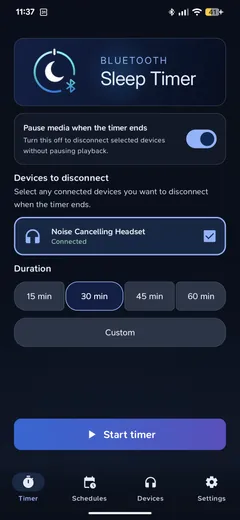
Connect your headphones through Galaxy Bluetooth settings and approve them in the app. Then choose a duration, select pause, disconnect or both, and start. Add Fade out for a gradual volume reduction during the final 15 seconds before pausing. The setup guide covers approval and the compatibility check.
Whether the headphones then power off depends on their firmware. Optional Reconnect Guard can disconnect them again if they reconnect during the two minutes after a successful disconnection; it does not block connections all night.
Match the timer to your evening
Optional one-time Full Access adds multiple devices, recurring Schedules, auto start and shortcuts. Choose the timing method by what stays consistent in your evening.
For a fixed finish time, use recurring Schedules. Set 11:30 p.m. on your chosen weekdays and the selected end actions run at that time. The schedule defines when listening ends; it does not start a countdown at 11:30.
For a consistent listening duration, use auto start. When approved headphones connect during your chosen hours, a countdown begins. That suits a bedtime that moves around: a 30-minute timer follows the connection time, rather than a fixed clock time.
For evenings you decide as you go, use a home-screen widget or the Quick Settings tile to start manually. These shortcuts make a deliberate start convenient without reopening the app each night.
Choose Bluetooth Sleep Timer when the headphones are the part you want to manage. Its timing options and explicit end actions make it a focused fit for bedtime audio on Android 17+.
Frequently asked questions
Does Do Not Disturb pause my music?
Do Not Disturb controls interruptions and allowed sounds. Its Media sound setting can affect what you hear, but silence is not proof that playback paused. Use a playback timer or pause action when you want the player to stop advancing.
Why is Bluetooth still on after my timer ends?
Bluetooth Sleep Timer disconnects the approved headphones you select while leaving the phone’s radio on. The Bluetooth switch staying on is expected. Check the selected headphone’s connection status to see whether it disconnected.
Should I use a schedule or an automatic countdown?
Use a schedule for a fixed end time on selected days. Use auto start for a chosen listening duration after approved headphones connect during your selected hours. Both are optional Full Access features.
Will this work on every Galaxy phone?
Bluetooth Sleep Timer requires Android 17 or later, including on Galaxy phones. Samsung’s own Sleep mode and Routine options depend on the model and software, so check the actions offered on your device.
References
- Samsung Support: Digital Wellbeing and Sleep mode
- Samsung Support: Do Not Disturb and sound exceptions
- Samsung Support: Sleeping apps and background usage limits
- Samsung Support: Modes and Routines
- Samsung Support: Create and manage Galaxy Routines
- Android Developers: Bluetooth adapter shutdown
- Bluetooth Sleep Timer: Google Play listing