
Comparisons Android 17+
Best Bluetooth sleep timer apps for Android
Stopping the music and disconnecting your headphones are different jobs. Here’s which timer we would choose for each.
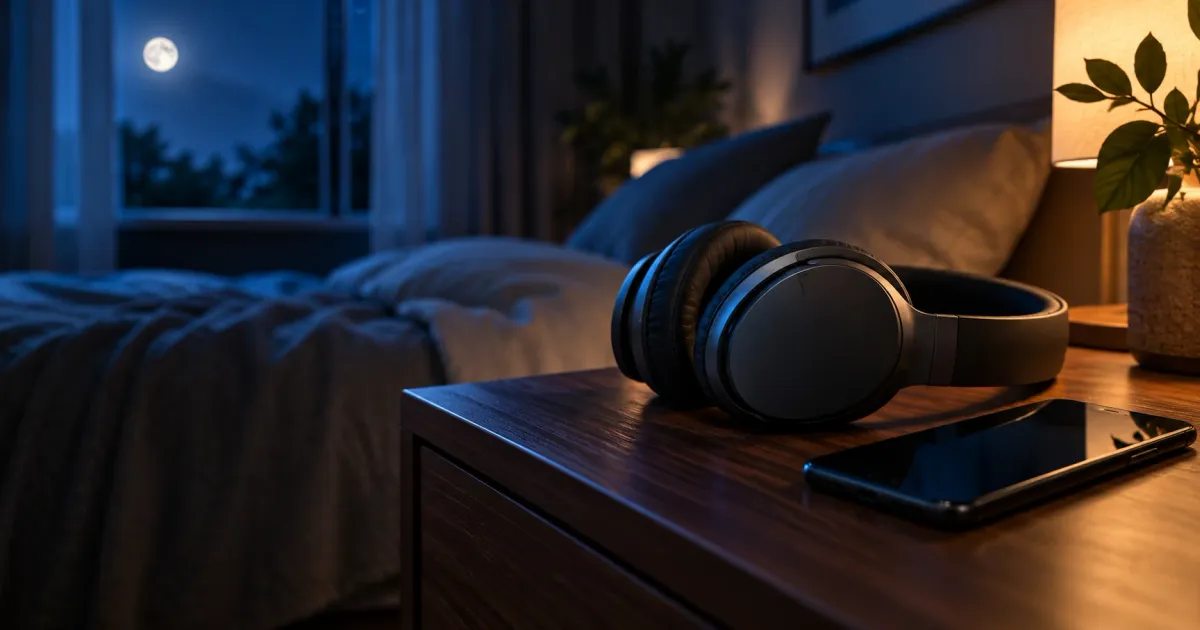
For fading and pausing audio, disconnecting selected headphones, and repeating a bedtime routine on Android 17+, Bluetooth Sleep Timer is our pick. It combines recurring schedules, automatic starts, widgets, and Quick Settings with Android’s new device-control APIs. Most alternatives focus on playback timers or DIY automation.
Get it on Google Play
 Get it on Google Play
For Android 17 and later
At a glance
| Rank | App / approach | Audio ending | Disconnects headphones | Schedules |
|---|---|---|---|---|
| 1 | Bluetooth Sleep Timer | Fade + pause | Yes | Recurring |
| 2 | Tasker | Custom routine | No | DIY routine |
| 3 | MacroDroid | Custom routine | Likely no | DIY routine |
| 4 | Cozy Timer | Stop playback | No | Timer start |
| 5 | Sleep Timer (Turn music off) | Fade + stop | No | No |
| 6 | Comfy Sleep Timer | Stop playback | No | No |
| 7 | Samsung Sleep mode / Routines | Depends on setup | Device-dependent | Sleep mode |
| 8 | Spotify / Audible timers | Player timer | No | No |
Which timer should you choose?
1Bluetooth Sleep Timer — best for Bluetooth bedtime routines
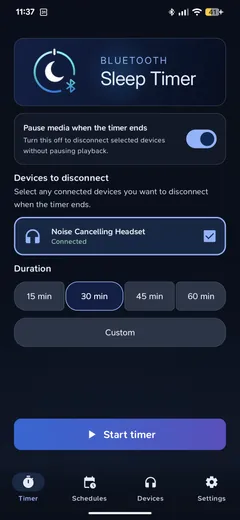
Bluetooth Sleep Timer brings the bedtime essentials together: fading audio, pausing playback and disconnecting selected headphones on Android 17+. Choose pause, disconnect, or both while leaving the phone’s Bluetooth radio on. It is especially useful if you switch between listening apps and want one timer for your headphones.
Free for one managed device, with no ads or account. One-time Full Access adds multiple devices, recurring Schedules, auto start, widgets and Quick Settings. See the schedules guide or feature comparison.
The built-in compatibility check helps you set up your headphones, and call-safety checks can skip end actions during calls.
- Fade out. Lower media volume during the final 15 seconds before pausing.
- Recurring Schedules. Repeat your selected end actions on chosen days.
- Auto start. Start a timer when approved headphones connect during your chosen hours.
- Widgets and Quick Settings. Start a timer from your home screen or a Quick Settings tile.
- Reconnect Guard. Watch for reconnections for two minutes and disconnect again if needed.
2Tasker — best for advanced automation
Tasker is a paid automation app for people who like to build their own routines. Combine time-based profiles with media and volume controls to fit bedtime into a wider set of phone automations. You decide how each routine works.
That flexibility takes setup. You need to assemble and maintain the actions yourself, which is a bigger commitment than setting a countdown. Choose Tasker when custom phone automation is the main goal.
3MacroDroid — best for simpler custom routines
MacroDroid organizes automation around triggers, actions and constraints. Choose a trigger, add media or volume actions, then limit the routine to certain days or times. It suits listeners who also want their timer to fit into broader phone habits.
You are still building the routine yourself, so expect more configuration than a dedicated sleep timer. The free version has ads, with a Pro upgrade available. Its strongest use here is custom playback automation.
4Cozy Timer — best for starting a countdown later
Cozy Timer is a playback timer with presets and the option to start a countdown at a scheduled time. Use it when you want your listening countdown to begin later.
Its scheduled start is different from Bluetooth Sleep Timer’s recurring schedules, which run your selected end actions at the time you choose. On Android 17, treat Cozy as a playback timer rather than a way to disconnect your headphones. Ads and in-app purchases apply.
5Sleep Timer (Turn music off) — best for a simple audio fade
Sleep Timer focuses on a familiar bedtime pattern: start your music, choose a countdown and let the volume fade before playback stops. Presets save your preferred durations, and shake-to-extend gives you more listening time when you are still awake.
It is a good fit when a gentle audio ending is all you need. You start the countdown for each session, and it does not handle the Android 17 headphone-disconnect step. The app has ads and in-app purchases.
6Comfy Sleep Timer — best for playback and screen controls
Comfy Sleep Timer combines a music or video countdown with extra phone controls. You can set media volume when the countdown begins, stop playback or turn off the screen when it ends, and extend the timer by shaking the phone or using its notification.
Choose it for music or bedtime video. Its Bluetooth-off option is limited to Android 12 and earlier, so it does not provide the headphone-disconnect feature compared here for Android 17. Ads and in-app purchases apply.
7Samsung Sleep mode / Routines — best for Galaxy bedtime settings
Samsung Sleep mode is useful for setting bedtime hours and making a Galaxy phone less distracting with Do Not Disturb and grayscale. It fits people who want their phone’s nighttime settings to change automatically.
Sleep mode alone does not stop media or disconnect headphones. Routines can add other actions, but the choices depend on your Galaxy model and software. Use these tools for the phone’s bedtime settings, and choose a dedicated timer when ending audio and releasing the headphone connection are the priority.
8Spotify / Audible — best for a timer inside your player
If you mainly listen in one app, its built-in timer may be enough. Spotify provides a playback timer for audiobooks, while Audible offers a timer with an audio fade. You can set the ending inside the player without opening a separate timer app.
The limitation is scope: each timer handles that player’s audio, and your headphones can remain connected afterward. Choose this approach for occasional listening in one app; choose a separate timer for schedules or headphone disconnection.
What to look for in a Bluetooth sleep timer
Start with what should happen at bedtime. An audio fade makes the ending gentler, a pause stops playback, and a Bluetooth disconnect releases the headphone connection. If you want both silence and disconnection, choose a timer that does both. A disconnect on its own can move audio to another output.
Next, decide how much you want to repeat manually. A countdown works well for an occasional listening session. Recurring schedules suit a regular bedtime, while auto start is useful when putting on your headphones is the cue to begin. Widgets and Quick Settings make manual starts quicker when your evenings vary.
Finally, check the Android requirement. Bluetooth Sleep Timer needs Android 17+ for its selected-device controls. Older Bluetooth-off features are a different approach and may be limited to older phones. No timer can guarantee that headphones physically power off; that behavior depends on the accessory.
Frequently asked questions
Does Bluetooth Sleep Timer work on Android 16?
No. It requires Android 17 or later because it uses the public device-control APIs added in API 37.
Is Bluetooth Sleep Timer free?
Yes, for timers and one managed device. One-time Full Access adds multiple devices, recurring Schedules, auto start, widgets and Quick Settings. There are no ads or subscriptions.
Will disconnecting turn my headphones off?
Not necessarily. Shutdown depends on the headphones’ firmware. Disconnecting a Bluetooth connection is not a power-off command.
Can a sleep timer start when my headphones connect?
Yes. With Bluetooth Sleep Timer’s Full Access, auto start begins a timer when an approved Bluetooth device connects during your chosen hours. Use recurring Schedules instead when you want the end actions to happen at a fixed time on selected days.
References
- Android Developers: BluetoothDevice.disconnect()
- Bluetooth Sleep Timer: Google Play listing
- Tasker: Google Play listing
- MacroDroid: Google Play listing
- Cozy Timer: Google Play listing
- Sleep Timer (Turn music off): Google Play listing
- Comfy Sleep Timer: Google Play listing
- Samsung Support: Digital Wellbeing and Sleep mode
- Spotify: Audiobook features and Sleep Timer
- Audible Help: Use timer