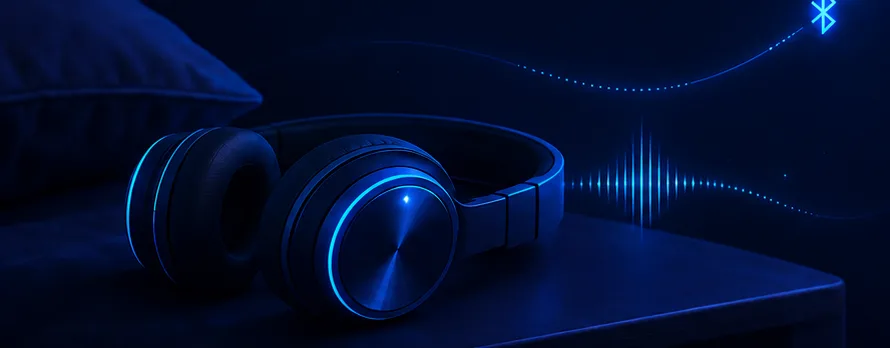
Sleep headphones and headbands
End the connection to the headband you fell asleep in. Some models then power down on their own.
Sleep timers for Bluetooth audio
Set a timer to pause media, disconnect selected Bluetooth devices, or do both. Choose the result that works for your listening routine.
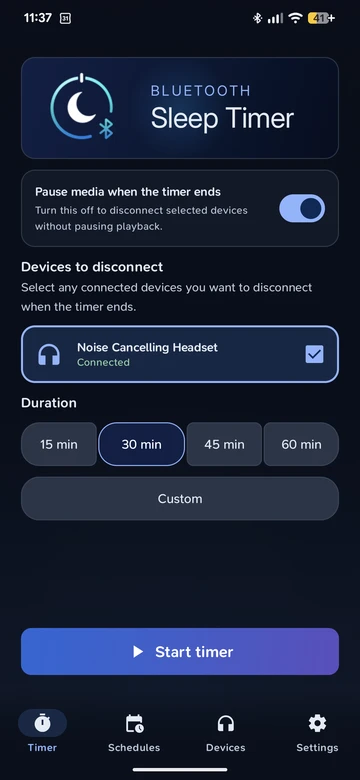
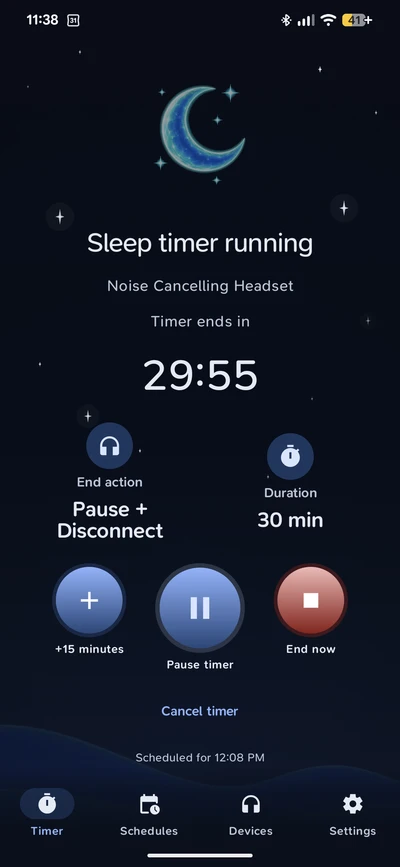
Screenshots show the English interface and a Pause + disconnect example.
Pause and disconnect, your way
Pause playback, disconnect selected devices, or do both when the timer ends. Each action has its own control, so your timer can do exactly what you choose.
Test device compatibility in the app before setting up your first disconnect timer.

AudioPaused
Bluetooth connectionStill connected
AudioPaused
Bluetooth connectionDisconnected
Made for listening in bed
End the connection to the headband you fell asleep in. Some models then power down on their own.
Stop the story at a set time without reaching for your phone in the dark.
Pause the audiobook or podcast, then disconnect, so nothing keeps streaming to them overnight.
Let the last song fade out, then pause and disconnect the speaker when the timer ends.
When the countdown reaches zero
The end actions run in a fixed order. Each step is saved before the next begins, so the app can continue after an interruption and report exactly what happened.
Media volume is lowered gradually during the final 15 seconds, adjusted once a second. Optional, and only when media pause is on.
Settings · OptionalIf a call or another communication session is active, the end actions are skipped instead of interrupting you.
AutomaticA standard media pause command goes to the active player. Whether playback stops depends on the player and Android.
Pause mediaEach selected device is disconnected in turn through Android 17’s public Bluetooth API. The app checks for up to five seconds that the connection dropped, and tries once more if it did not.
Devices to disconnectFor two minutes, the app checks every second and disconnects a selected device again if it reconnects. It never reconnects devices afterward.
Settings · OptionalThen the result screen reports one of these outcomes:
After a fade, the original media volume level is restored. Pausing depends on the active player, and disconnection depends on Android and the accessory.
Bluetooth Sleep Timer
Your timer, your result
Choose a duration and whether to pause media. Select approved Bluetooth devices to disconnect at the end. Enable Fade out in Settings for a gradual volume reduction during the final 15 seconds when media pause is on.
Read the guideA little less bedtime admin
Full Access adds recurring schedules and multiple devices. Plan the nights and times that suit you, then check the result in the app.
Read the guideWithin easy reach
Full Access includes widgets, Quick Settings, timer shortcuts and smart timer notifications when an approved device connects. Reconnect Guard in Settings can disconnect selected devices again if they reconnect within two minutes.
Read the guideHow it works
For disconnection, connect your accessory, open Devices and choose Manage connected device. Approve it through Android, run Test compatibility and save. Pause only works without a managed Bluetooth device.
Choose a duration. Use Pause media when the timer ends and Devices to disconnect to set pause, disconnection or both. Fade out is configured in Settings.
Keep listening. The app requests your chosen actions at the end and shows what happened.
More than a playback timer
See what selected-device control adds to a playback-only sleep timer.
Scroll the table horizontally to see every column.
| Capability | Bluetooth Sleep Timer | Playback-only timer |
|---|---|---|
| Pause media | Included | Included |
| Disconnect selected Bluetooth devices | Included | Not included |
| Pause + disconnect in one timer | Included | Not included |
| Device compatibility check | Included | Not included |
The baseline is a playback-only timer, with no Bluetooth device control. Other sleep timer apps vary. Full Access marks optional paid features. Device actions depend on Android and accessory compatibility.
See the full comparison →Specifications
Built on public Android 17 APIs. No root access is needed, and your phone’s Bluetooth stays on.
Simple by design
Sleep timers and one managed Bluetooth device. No ads, subscription or app account.
An optional, permanent one-time purchase for multiple devices, recurring schedules, widgets, Quick Settings, timer shortcuts and connection-based suggestions.
Your current local price is shown in the app before you purchase. Use Restore purchase in Settings with the Google Play account that bought Full Access.
Selected-device disconnection uses public Android 17 APIs and Android’s Companion Device Manager. The app requires Android 17 or later.
No. It disconnects only the approved devices you select. Bluetooth stays on, so a watch or another accessory you didn’t select stays connected.
Yes. Media pause and selected-device disconnection have separate controls. Turn off Pause media when the timer ends and select the device under Devices to disconnect for Disconnect only.
It requests disconnection of approved devices. Some accessories then switch themselves off, but power-off behavior depends on the accessory and is not guaranteed.
Yes. The timer’s plan is saved and its end is set with an exact alarm, so it can run even if Android stops the app in the background. If the phone restarts during a timer, the app reports the timer as interrupted instead of running it late.
The app checks for an active call or communication session first. If one is active, it skips the end actions rather than interrupting you, and the result shows Timer skipped for safety.
The app attempts to pause active media. Whether the request succeeds depends on Android, the media app and your accessory. Try your setup while awake; the app reports the outcome.
Timers, device selections and preferences stay in the app’s local storage. Google Play and RevenueCat process optional purchases. Release builds use limited Firebase Crashlytics diagnostics. See the privacy policy for details.
Set the timer, choose your devices and make room for rest.
For Android 17 and later