1. Check your phone and accessory
You need Android 17 or later. Pause only does not require a managed Bluetooth device. For a disconnect action, connect your Bluetooth audio accessory; Android controls which devices can be approved and which actions are supported.
A sleep mask, headphones or speaker may behave differently after disconnection. Check the accessory’s own instructions if you want it to power itself off.
2. Set up a device for disconnection
For a disconnect action, open Devices and choose Manage connected device. Select your connected accessory and approve it through Android’s Companion Device Manager. Run Test compatibility, review the result and choose Save once setup is ready. You can skip device setup for Pause only; device approval does not turn off the phone’s entire Bluetooth radio.
The free app supports one managed Bluetooth device. Full Access adds multiple devices and multi-device timers.
3. Choose the timer’s end actions
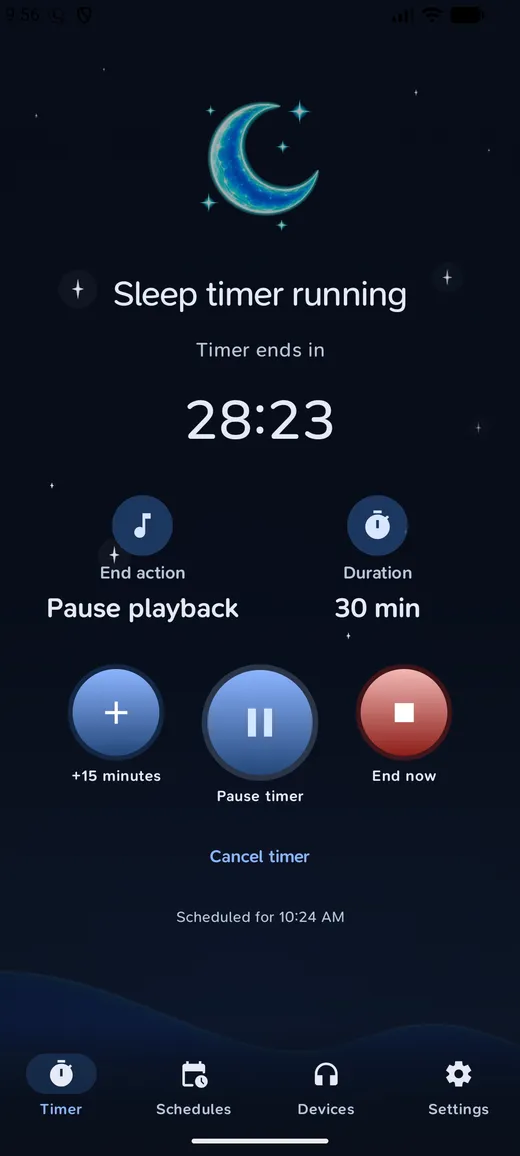
On Timer, choose a duration. Use Pause media when the timer ends to request a media pause, and select approved connected accessories under Devices to disconnect. Leave devices unselected for Pause only, turn off media pause with a device selected for Disconnect only, or enable both for Pause + disconnect. Then choose Start timer.
Enable Fade out in Settings for a gentler ending. It lowers media volume during the final 15 seconds only when media pause is enabled, then restores the original level. Media control depends on the active player and Android; a pause request is not a guarantee of universal player support.
4. Run a short test
Start a short timer while awake with your usual media app playing. Check the app’s completion result: it distinguishes the media response from device disconnection.
Keep notifications and any requested Android timer permissions enabled. Active calls and communication sessions are protected, which can affect the actions taken.
5. Settle into your routine
Once the setup behaves as expected, choose your bedtime duration. During a timer, use +15 minutes to extend it or Pause timer to pause the countdown. End now requests the chosen end actions immediately; Cancel timer stops the timer.
Enable Reconnect Guard in Settings if your selected accessory reconnects automatically. The app can disconnect selected devices again if they reconnect within two minutes. It does not reconnect them when the guard ends, and the guard is not an all-night block.