
Player guides Spotify on Android
Spotify sleep timer on Android: stop music and disconnect headphones
Give your bedtime playlist an ending—and decide what happens to your headphones afterward.
Spotify’s sleep timer stops your music or podcast, but your Bluetooth headphones can stay connected. For an Android 17+ bedtime routine that fades audio, pauses playback and disconnects selected headphones, choose Bluetooth Sleep Timer. Its free version manages one device and leaves the phone’s Bluetooth radio on.
Get it on Google Play
 Get it on Google Play
For Android 17 and later
At a glance
| Timer | Audio ending | Disconnects headphones |
|---|---|---|
| Bluetooth Sleep Timer · Android 17+ | Optional fade + pause | Selected headphones |
| Spotify Sleep Timer | Stops Spotify | Playback only |
Set Spotify’s timer for music or podcasts
Start a song or podcast and expand the Now Playing bar. For music, open the three-dot menu and look for Sleep Timer. For podcasts, use the moon icon beside the playback controls. Choose a duration: Spotify offers five minutes through one hour, plus an end-of-track option for music. Spotify’s timer guide.
Premium users can also open Queue, the three-line icon in Now Playing, and use its Sleep Timer control. If your music menu looks different, check there. Spotify’s queue controls.
The native timer is convenient when ending Spotify playback is the whole job. If you also want the headphone connection to end, use Bluetooth Sleep Timer to handle both actions in one countdown.
Why quiet headphones can still be connected
A pause stops playback. A Bluetooth disconnect ends the connection between your phone and the selected accessory. These are separate actions: headphones can remain connected while nothing is playing, ready for the next sound. Spotify’s timer controls playback; it is not a headphone-disconnect setting.
Disconnecting alone is also a poor substitute for pausing. Depending on the player and audio routing, playback may continue through another output. For bedtime, choose pause and disconnect together so the timer requests a pause before releasing your headphones. You can leave the phone’s Bluetooth radio on for other devices.
Add a fade, pause and headphone disconnection
Bluetooth Sleep Timer brings these end actions together on Android 17+. Start with Spotify playing on the phone and your headphones connected to that phone. A TV or smart speaker selected through Spotify Connect is a different playback destination; see the FAQ below.
For first-time setup, approve your connected headphones in Devices and run Test compatibility. The device-approval guide covers the Android permissions and setup screens. Free use supports one managed device, with no ads or account.
Choose the end actions
In Settings, enable Fade out if you want a gentler ending. It lowers media volume during the final 15 seconds of a timer with media pause enabled. The original volume is restored after the playback stage, before the device-disconnect step.
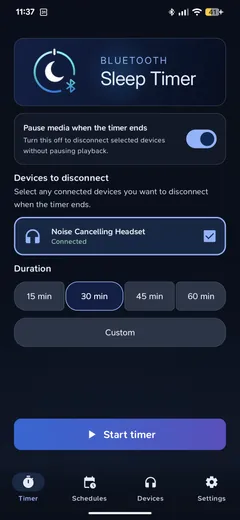
Open Timer, choose a duration, enable Pause media when the timer ends, and select your approved headphones under Devices to disconnect. This gives you Pause + disconnect. With Spotify playing, choose Start timer.
For a 30-minute listening session, the fade happens near the end of those 30 minutes; it does not add another 15 seconds. The timer then requests a media pause and the selected disconnection.
Try a short countdown while awake
Use your usual Spotify content and headphones, then check both results: did playback pause, and did the headphones disconnect? Media control depends on Android, the player and the accessory. Keep the requested timer permissions enabled; call-safety checks can skip end actions during a call.
If your headphones reconnect automatically, enable Reconnect Guard. It can disconnect them again during the two minutes after a successful disconnection. It does not block connections all night or reconnect the headphones when it ends.
Frequently asked questions
Why can’t I find Spotify’s sleep timer?
Open the full Now Playing screen rather than the playlist. Check the three-dot music menu or the podcast moon icon. Premium’s Queue also includes a Sleep Timer control, so check it if your layout differs. Keep Spotify updated. The official guide and queue instructions cover these entry points.
Does the sleep timer work with Spotify Connect?
Yes. Spotify supports timer control across phone, desktop and Wear OS, with playback stopping on many connected destinations, including speakers and TVs. Spotify Connect lets one device control playback on another. Disconnecting headphones from your Android phone does not disconnect a remote speaker or TV. Use Spotify’s timer for that remote playback; this guide’s Bluetooth Sleep Timer setup is for headphones connected to the phone.
Can I repeat the same bedtime routine every night?
Yes. Bluetooth Sleep Timer’s one-time Full Access adds recurring Schedules that run your chosen end actions at a selected time on chosen days. Auto start instead begins a countdown when approved headphones connect during your chosen hours. Choose schedules for a fixed ending, or auto start when putting on headphones is your bedtime cue. Full Access also adds multiple devices, home-screen widgets and a Quick Settings tile.
Will the timer power off my headphones?
No power-off command is sent. Bluetooth Sleep Timer disconnects the selected device from your phone. Whether the headphones then shut down, stay awake or connect elsewhere depends on the accessory. Check its own settings for an automatic power-off feature.