
Bedtime listening Android guide
YouTube sleep timer on Android: stop videos at bedtime
Let Bluetooth Sleep Timer handle the end of your YouTube session: fade the audio, pause the video and, if you choose, disconnect your headphones.
On Android 17+, use Bluetooth Sleep Timer to pause YouTube after a chosen duration, with an optional fade during the final 15 seconds. Add selected-headphone disconnection when you want that too, or use pause alone. One countdown handles the ending, so you do not need to set YouTube’s native timer as well. You can also add 15 minutes from its notification while the timer is running.
Get it on Google Play
 Get it on Google Play
For Android 17 and later
At a glance
| Feature | Bluetooth Sleep Timer | YouTube’s built-in timer |
|---|---|---|
| Pause YouTube after a countdown | Yes | Yes |
| Audio fade | Optional final 15 seconds | Not documented |
| Extend from notifications | Add 15 minutes | Adjust in the player menu |
| Disconnect selected headphones | Approved devices | Not documented |
Set Bluetooth Sleep Timer to pause YouTube
Bluetooth Sleep Timer is our pick for YouTube listening at bedtime on Android 17+. Choose a playback pause, selected-headphone disconnection, or both. A pause-only timer lets you end the video without asking the app to disconnect your headphones. No managed Bluetooth device is needed for pause alone.
Free use includes timers and one managed device, with no ads or account. The optional one-time Full Access purchase adds multiple devices and repeat-routine features. See Bluetooth Sleep Timer on Google Play.
Choose your end actions
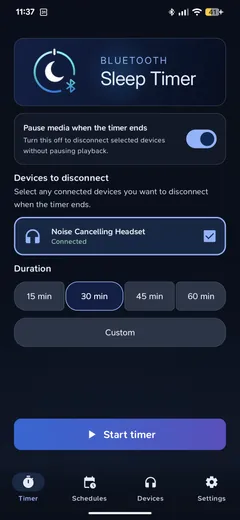
Choose a duration and enable Pause media when the timer ends. Leave Devices to disconnect empty for pause alone. Tap Start timer, then return to YouTube and play your video. For a long interview, a 30-minute countdown gives the session a clear end.
To disconnect headphones too, connect them in Android, then approve them in Bluetooth Sleep Timer’s Devices tab and run Test compatibility. Follow the device setup guide for the approval steps. Select those headphones on the timer screen and keep media pause enabled for both actions. The phone’s Bluetooth radio stays on.
Enable Fade out for a gentler ending. It lowers media volume during the final 15 seconds before the pause, then restores the original volume level. Keep media pause enabled to use the fade.
Try a short countdown while awake with your usual video and headphones. Media pause and disconnection depend on Android, the player and the accessory. Disconnecting alone can leave playback running on another output, so choose both actions when you want listening to end.
Extend the timer from its notification
Give yourself more listening time without reopening Bluetooth Sleep Timer. While your countdown is running, open Android’s notification shade and use the timer notification’s add-time action to add 15 minutes to the current timer.
With YouTube’s built-in timer, you return to the video player’s Settings → Sleep timer to adjust the duration. Bluetooth Sleep Timer’s notification shortcut makes extending a bedtime session simpler, with no trip back through the player’s menus. YouTube’s adjustment instructions.
Repeat the routine with less tapping
With Full Access, recurring Schedules run your selected end actions at a fixed time on chosen days. For example, choose 11 p.m. on weeknights when you want the same bedtime ending regardless of when the video started.
Auto start suits evenings that vary: it begins a countdown when an approved device connects during your chosen hours. A 30-minute countdown therefore ends 30 minutes after that connection. It starts the timer, not a YouTube video. Widgets and a Quick Settings tile provide faster manual starts, also with Full Access.
Choose a schedule for a fixed end time or auto start for a fixed listening duration. The schedules and shortcuts guide covers recurring times and manual shortcuts.
Listening with the screen off
Screen-off listening is a separate benefit. YouTube Premium supports background play in the main app. Premium Lite includes it for most videos, but excludes music content and Shorts. Background play is unavailable in the Shorts player.
Neither YouTube’s Sleep timer nor Bluetooth Sleep Timer unlocks background playback. Check that your chosen video keeps playing with the screen off before settling down. If locking the phone stops it, changing the timer will not add that playback permission.
YouTube’s built-in controls, in brief
YouTube also offers a native timer: open the video player’s Settings → Sleep timer and choose a duration. YouTube’s timer instructions cover that option.
A bedtime reminder is a dismissible prompt that can interrupt a video. Autoplay controls whether a related video starts next. Neither sets a countdown to pause playback.
Frequently asked questions
Can Bluetooth Sleep Timer pause YouTube without disconnecting my headphones?
Yes. Enable Pause media when the timer ends and leave Devices to disconnect empty. The timer requests a playback pause without a Bluetooth disconnect action. You still need Android 17+.
Do I need YouTube Premium for Sleep timer?
No. YouTube makes the mobile timer available without Premium. Screen-off playback is a separate benefit with its own membership and content rules. YouTube’s mobile timer announcement.
Does this guide cover YouTube Music too?
No. The YouTube-specific instructions here cover the main Android app. YouTube Music is a separate player with its own controls; check a short Bluetooth Sleep Timer countdown with the player you actually use.
Why are my headphones still connected after YouTube stops?
Pausing a video and ending a Bluetooth connection are separate actions. YouTube’s timer handles playback; use Bluetooth Sleep Timer on Android 17+ for selected-headphone disconnection too. Disconnection does not guarantee the headphones will power off; that depends on the accessory.